
Overview
Release condition rules in Blackboard Ultra allow instructors to control when students can access specific content, assessments, or learning materials. These rules can be applied to almost any item in a course, making them a powerful tool for managing staggered assessments, differentiated access, and time‑sensitive documents.
This guide explains how release conditions work and provides two detailed examples from modules within the College of Business and Law.
What are Release Condition rules?
Release condition rules determine when an item becomes visible to students. Each item in Blackboard Ultra can be set to one of three visibility states:
- Visible – Students can see the item immediately.
- Hidden – Students cannot see the item.
- Release Conditions – Students can see the item only when specific criteria are met.
How to apply Release Conditions
1. Click the visibility icon (disclosure triangle) beneath the item’s title.

2. Select Release conditions.
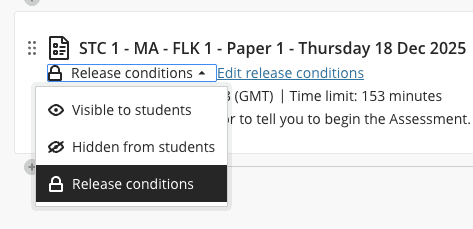
3. Choose the type of rule (e.g., date/time, group membership, performance).
4. Add one or more rules as needed.
Multiple rules can be applied to the same item, allowing for highly customised access.
Example 1: Foundation for Legal Knowledge (FLK) multiple‑choice tests
The FLK module ran large, on‑campus multiple‑choice tests. The format of these tests mirror the Solicitor Qualifying Exam (SQE 1) that students have to sit externally with the Solicitor Regulation Authority, so are a good example of authentic assessment.
Students were divided into groups that sat the test at different times and for different durations. Release conditions ensured that each group could only access the test during their scheduled window.
Standard‑time students
A release condition was set so that students without Reasonable Adjustments (RAs) could access the test only during their allocated time. For example, if the test duration was 153 minutes, the release window reflected this exact period.

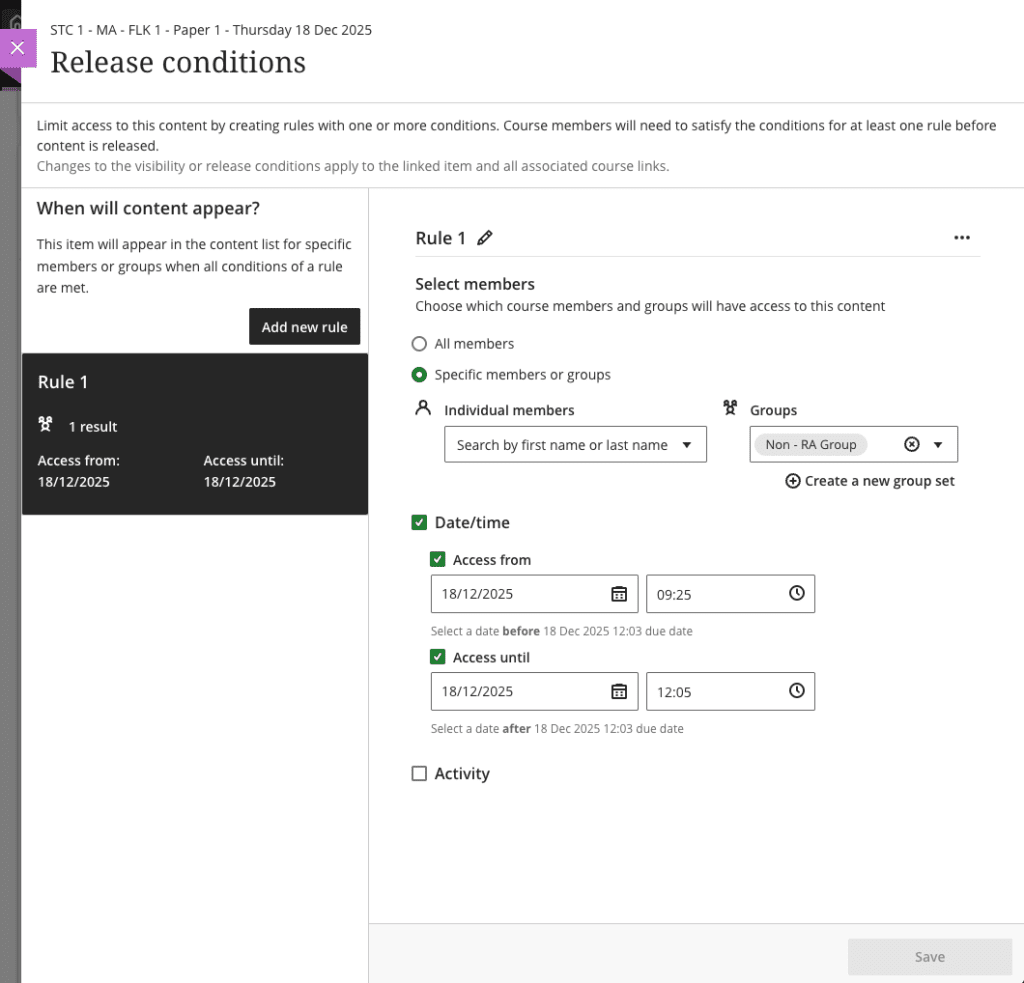
Students with Reasonable Adjustments (RA)
Students entitled to extra time required extended access windows. Because RA allowances varied, the release condition was set to accommodate the maximum possible duration – up to 306 minutes for those with 100% extra time. Invigilators manually ended the test for students with shorter RA allowances.
In this example, a single release rule per test was sufficient, although Blackboard Ultra allows multiple rules if needed.

Example 2: Criminal Advocacy presentations
In this module, students completed assessed presentations scheduled from Monday to Thursday. Students were grouped by presentation day and by morning or afternoon sessions. Three key documents needed to be released at specific intervals before each presentation:
- Assessment Brief – released 7 days before
- Student Instructions – released 7 days before
- Name of Witness – released 24 hours before
How the rules worked
- A student presenting on Monday received the brief and instructions the previous Monday, and the witness name on Sunday.
- Tuesday presenters received their documents the Tuesday before, and the witness name on Monday.
- This pattern continued for Wednesday and Thursday groups.
Applying the rules
- The brief and instructions were identical for all students, so one item was used with multiple rules – one for each presentation group.
- The witness name was also the same for all students but needed to be released at different times for morning and afternoon groups. Three rules were created to ensure each group received the document exactly 24 hours before their presentation.

Key takeaways
- Release conditions provide precise control over when students access content.
- Multiple rules can be applied to a single item for complex scheduling needs.
- They are particularly useful for staggered assessments, group‑based activities, and time‑sensitive materials.
- See more detailed guidance on using Release conditions.